

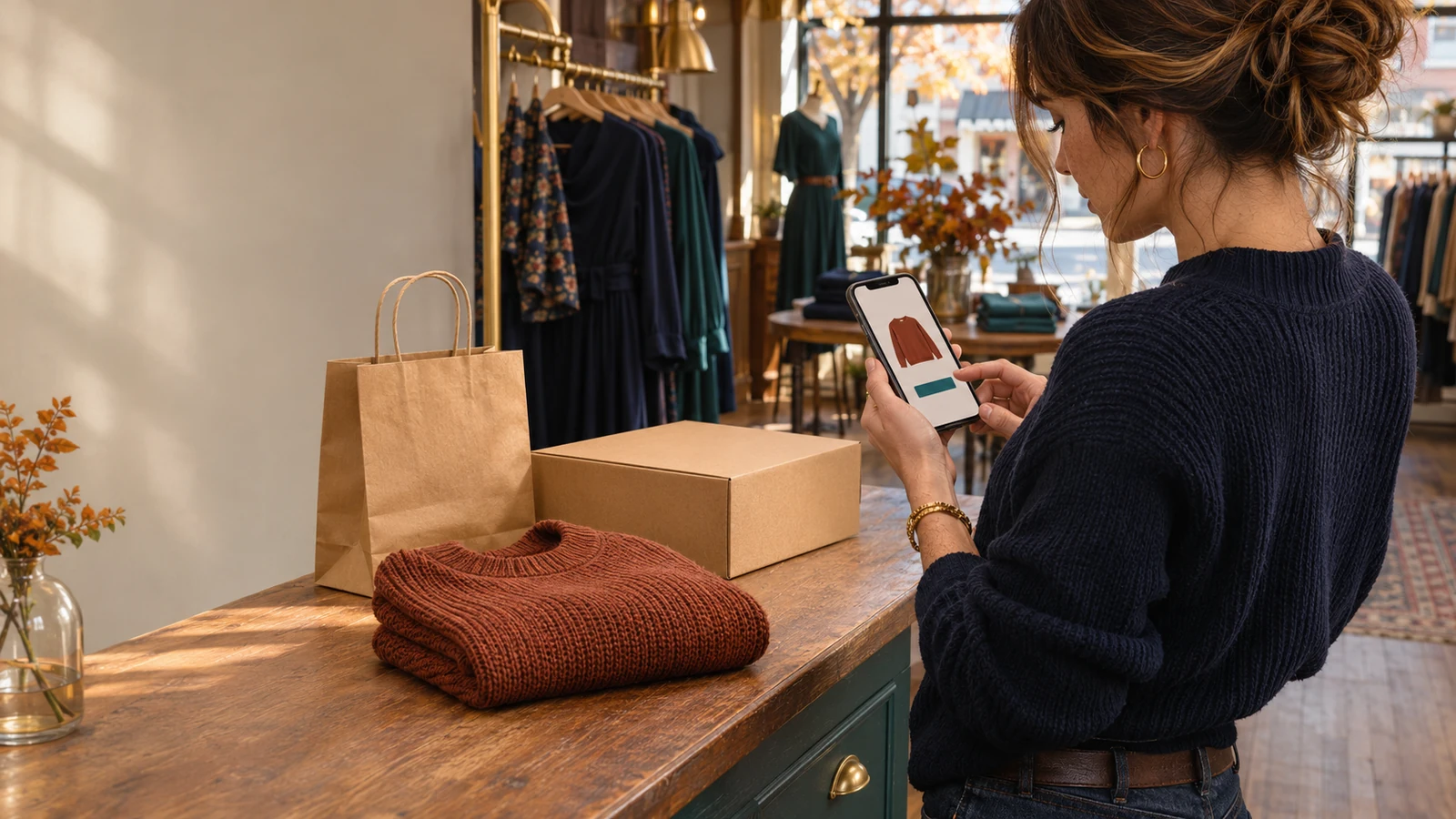
Picture a shopper who sees your Friday sale on Facebook at lunch. She finds the sweater, picks her size, and reaches checkout. Your post promised local pickup, but the only option on her screen is $9 shipping. From the owner’s side, the store looks open and the promotion looks fine. From the shopper’s side, the deal just changed.
Choose one actual sale item and write down what a buyer should see for its price, discount and delivery. Use that item for the seven tests below. For each snag, save the screen, the cart contents and the step where it happened. That gives whoever fixes the store enough information to reproduce the problem.
1. Shop from the link on your phone
Open the exact link you plan to share in a private mobile browser window. Start signed out. Select a size or color, add it to the cart, change the quantity, and continue to checkout. Try it with one hand. Does a chat bubble cover the button? Can you see which size you picked after returning from the cart? Ask someone who hasn’t built the page to try it. Watch where they hesitate before explaining anything.
2. Apply the offer exactly as advertised
If the sale promises 20% off select sweaters, a qualifying $40 sweater should show an $8 discount before shipping and tax. Add a full-price accessory and check that each item gets the intended treatment. Try the welcome code from your email signup in the same cart. Shopify uses your discount combination settings to determine which offers can apply together. Check the outcome against the wording shoppers will see. If the promotion starts Friday, check its activation time and use a limited test offer with matching rules for your rehearsal. [1]
3. Try the size that sold out
Find a tracked item with one size already sold out and another still available. Select each on the product page and check what reaches the cart. If you don’t accept backorders, the unavailable size should be blocked while the other remains purchasable. Shopify’s inventory settings let you choose whether selling can continue after stock reaches zero. If you do accept preorders, read the delivery promise on that size as a customer would. [2]
4. Price a shipment to two addresses
Use addresses in two places you regularly serve. Start with the sweater alone, then add a second product. Compare the quoted options with your shipping policy. If you advertise free shipping at a threshold, try a cart just below it and another that qualifies. An unexpectedly high total can come from items assigned to different shipping profiles. For weight-based rates, check the product and package weights used by the store. [3]
5. Follow the pickup instructions to the door
Choose a product stocked at your pickup location and select pickup at checkout. Read the location name, address and estimated preparation time aloud. Could someone find the counter if your shop operates inside another business? When you place the simulated order in the next test, select pickup and have a staff member mark it ready for pickup. Read the separate ready-for-pickup email and check that it tells the customer where to go. Shopify treats order placement and readiness as separate steps. [4]
6. Run an approved and a declined payment
Use the test details provided by your payment gateway to simulate a success and a decline. Watch what the buyer can do after the decline, then find the successful order in Shopify admin. If you test on a live store, choose a quiet window. Customers lose access to live card checkout through a provider in test mode. Pause any automatic fulfillment that could dispatch a test shipment. Once you finish the confirmation checks below, cancel the test fulfillment or order as appropriate. Restore live payments and fulfillment, and verify the settings before the next shopper arrives. [5]
7. Find the confirmation in both inboxes
Use an email address you control for an end-to-end order. Open the customer confirmation on your phone and compare the size, total, delivery method and order number with the admin record. Ask the person packing orders to find the staff notification and identify the next action. A shopper can receive a perfectly good receipt while the employee on Friday’s shift is checking the wrong mailbox. [5]
First fix any issue that blocks payment, charges the wrong amount, or sends a customer to the wrong place. Then run that same cart again. If you’d like El Roi Digital Services to help troubleshoot your Shopify checkout, include the device, delivery choice and step that failed in your project inquiry. Leave customer and payment details out of the screenshot.
Sources and links
- Shopify Help Center · Combining discounts https://help.shopify.com/en/manual/discounts/discount-combinations
- Shopify Help Center · Selling out of stock products https://help.shopify.com/en/manual/inventory-and-locations/setup/selling-when-out-of-stock
- Shopify Help Center · Setting up shipping zones and rates https://help.shopify.com/en/manual/fulfillment/setup/shipping-rates/setting-up-shipping-rates
- Shopify Help Center · Setting up pickup in store for online orders https://help.shopify.com/en/manual/fulfillment/setup/delivery-methods/pickup-in-store
- Shopify Help Center · Processing a test order https://help.shopify.com/en/manual/checkout-settings/test-orders/processing-test-order